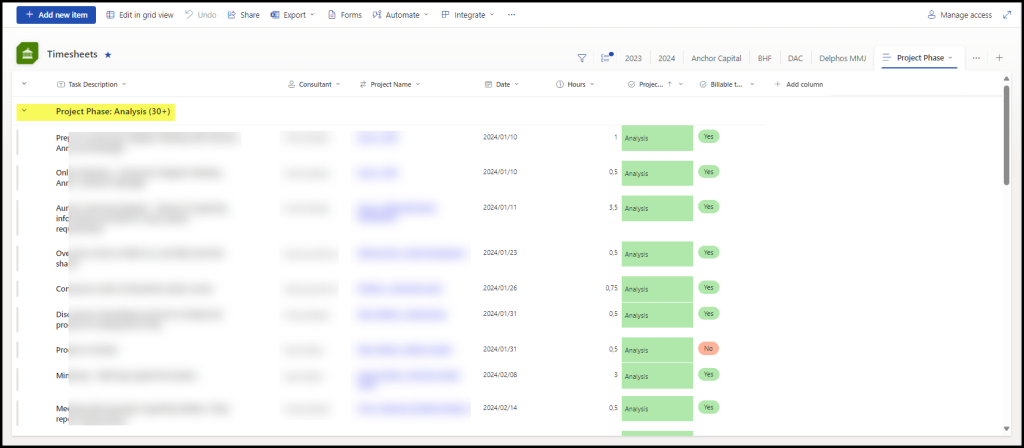
When you have columns in lists and libraries to create filters, you can also create groupings.
You can edit the settings of any view to do this. In this example, docs are grouped by Document Type.
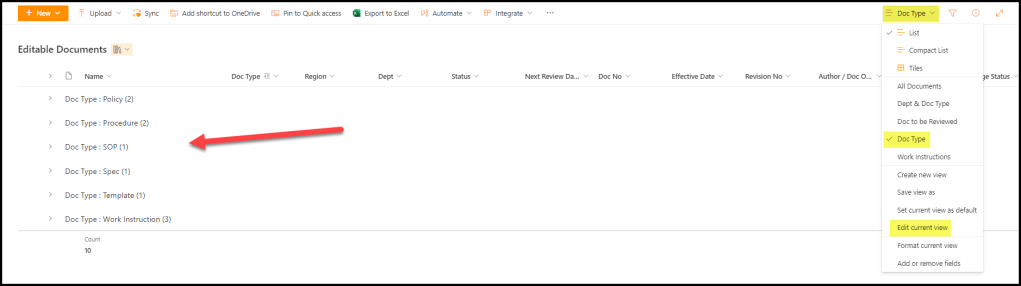
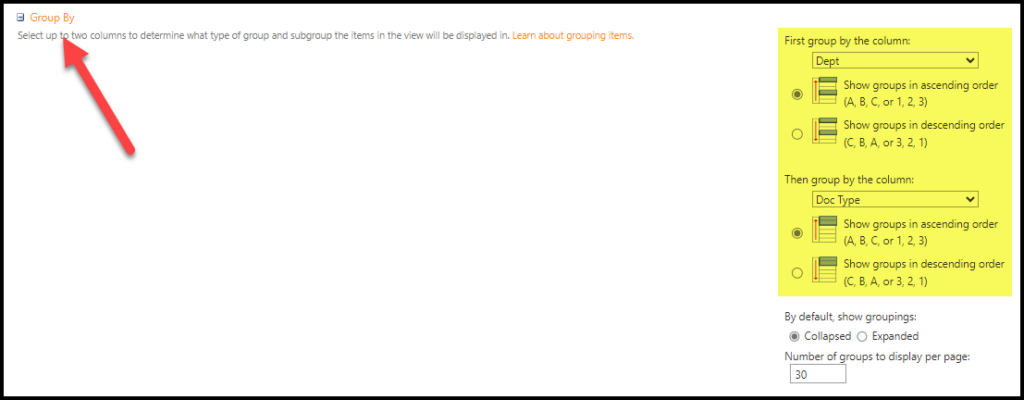
And this is the setting.
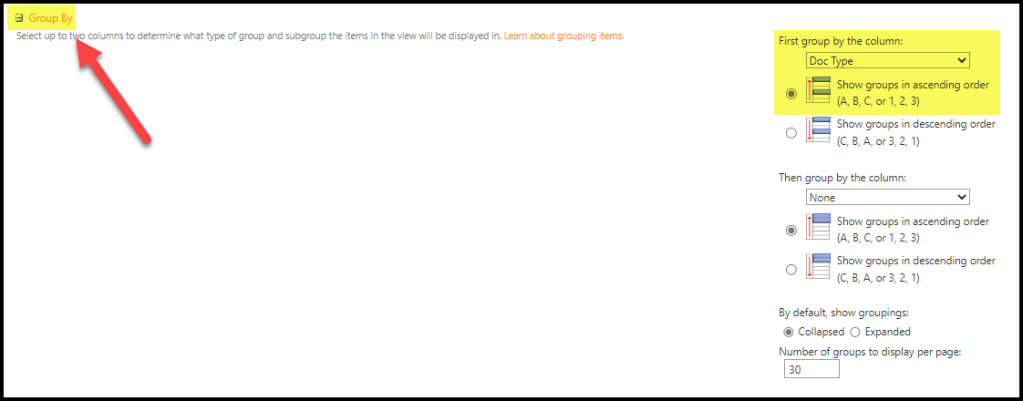
Grouping simulates the folder structure of old. But the benefit of grouping, is that it only shows you content that IS there, not content that isn’t – so none of this navigating through loads of folders to get to an empty folder.
You can only group to 2 levels like this.
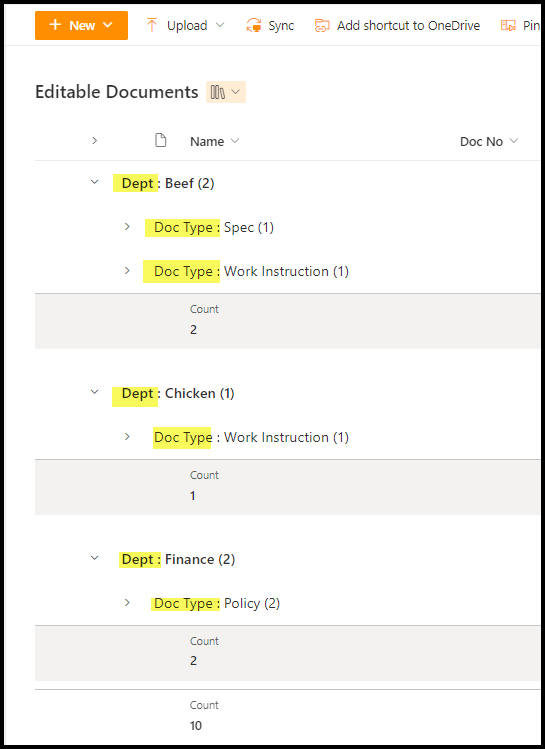
This is the setting.
HEADS UP
Microsoft decided to make Microsoft Lists sometime back. Then in their wisdom, ripped SharePoint Lists out and replaced it with Microsoft Lists. It is extremely buggy. Watch your view settings. You think you’ve configured them, but they don’t actually take. Grouping for example – sometimes it works, sometimes it doesn’t. Sometimes it’s expanded, sometimes it’s collapsed, despite your settings in the back end.