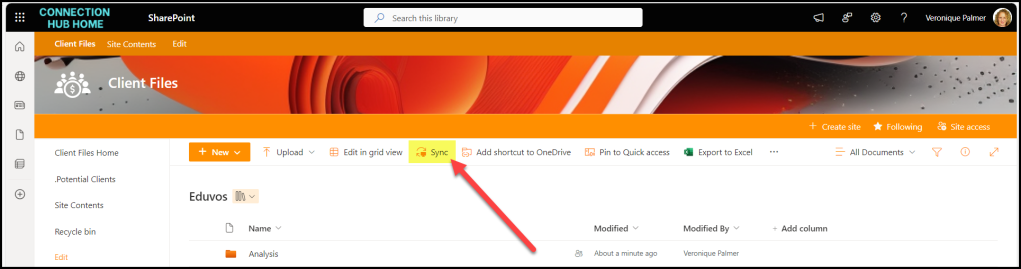
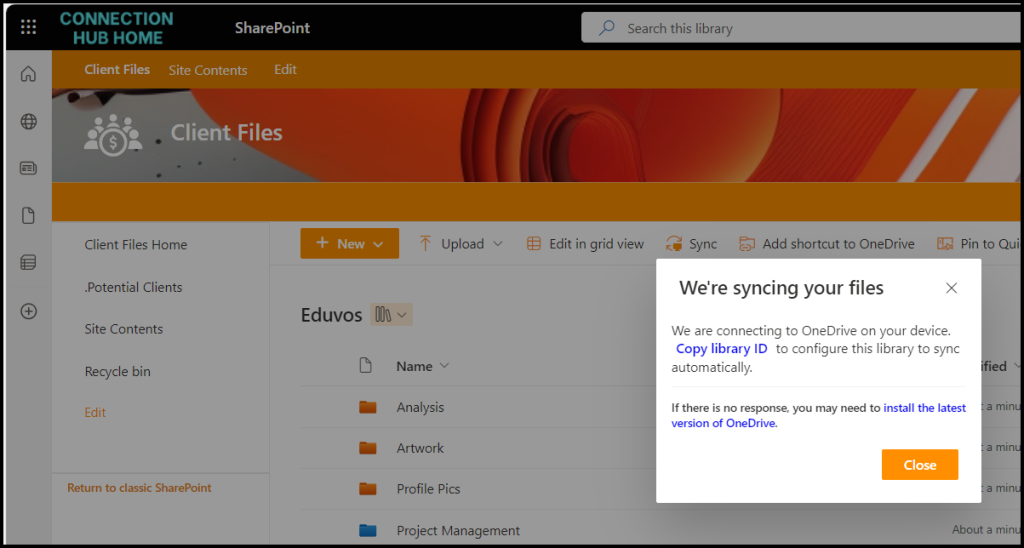
You can sync Document Libraries so that you can work from your desktop. Click the Sync button on each library you want to sync and follow the prompts that pop up.
They display under your company name in Windows Explorer.
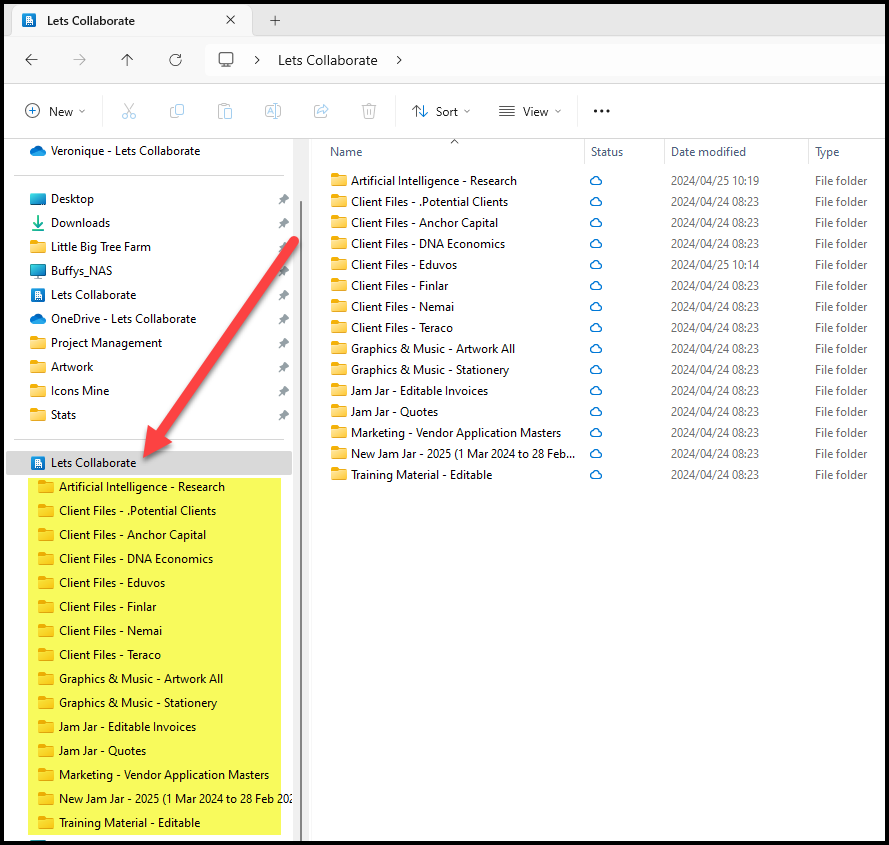
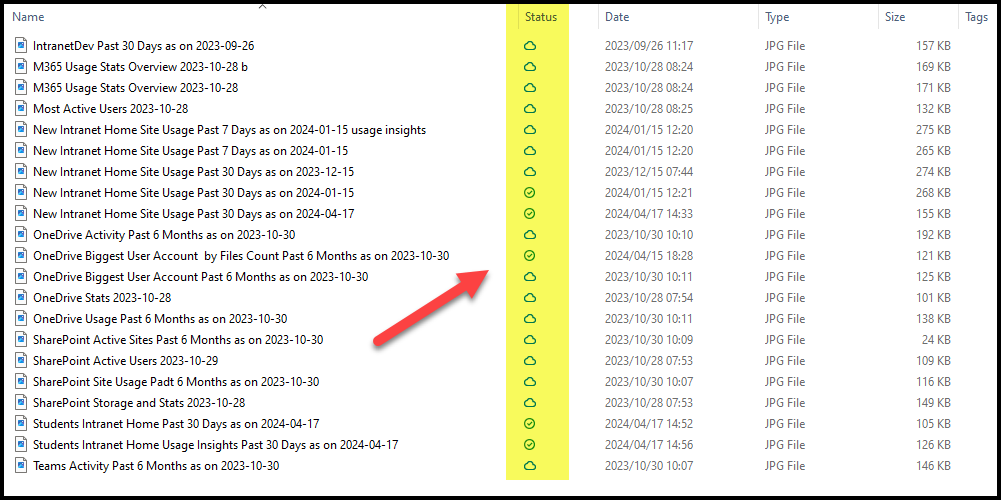
The Status column indicates where it is – either completely in the cloud or also on your computer Anything you change in here is synced back to SharePoint and vice versa. You can also work offline this way. When you’re back online, the changes you’ve made will sync back.
HOT TIP
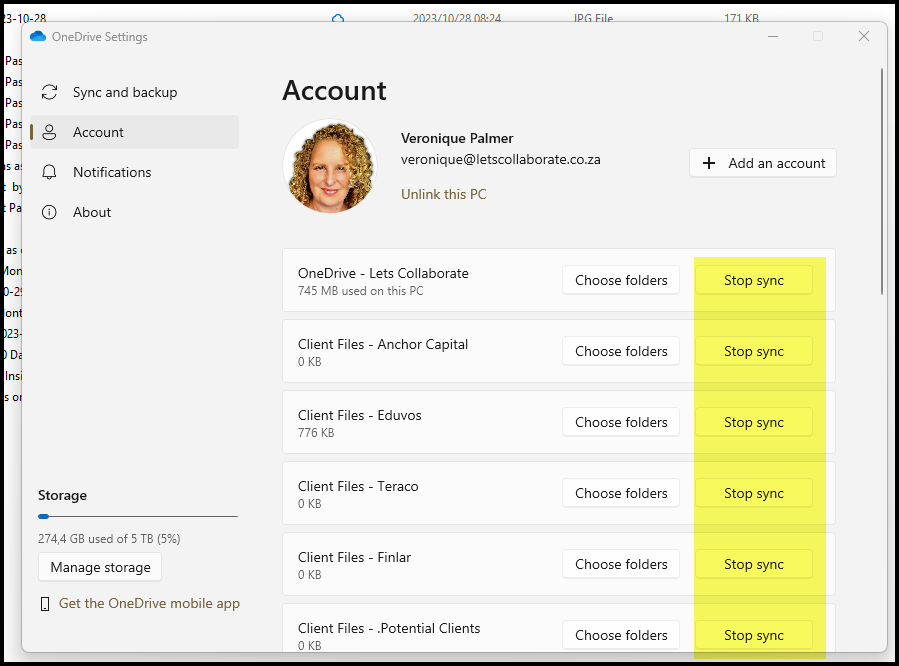
To stop syncing a library, click the OneDrive icon > Settings > Settings again > Account.
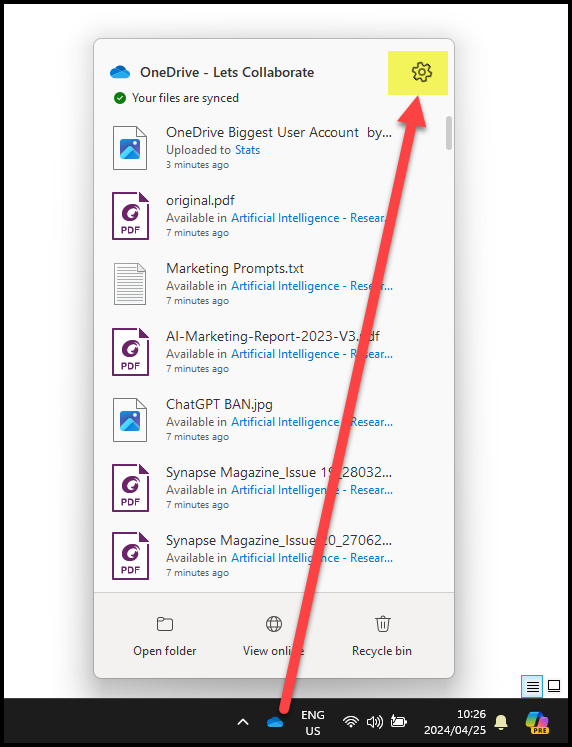
This gives you a list of synced items. Click Stop Sync where applicable.
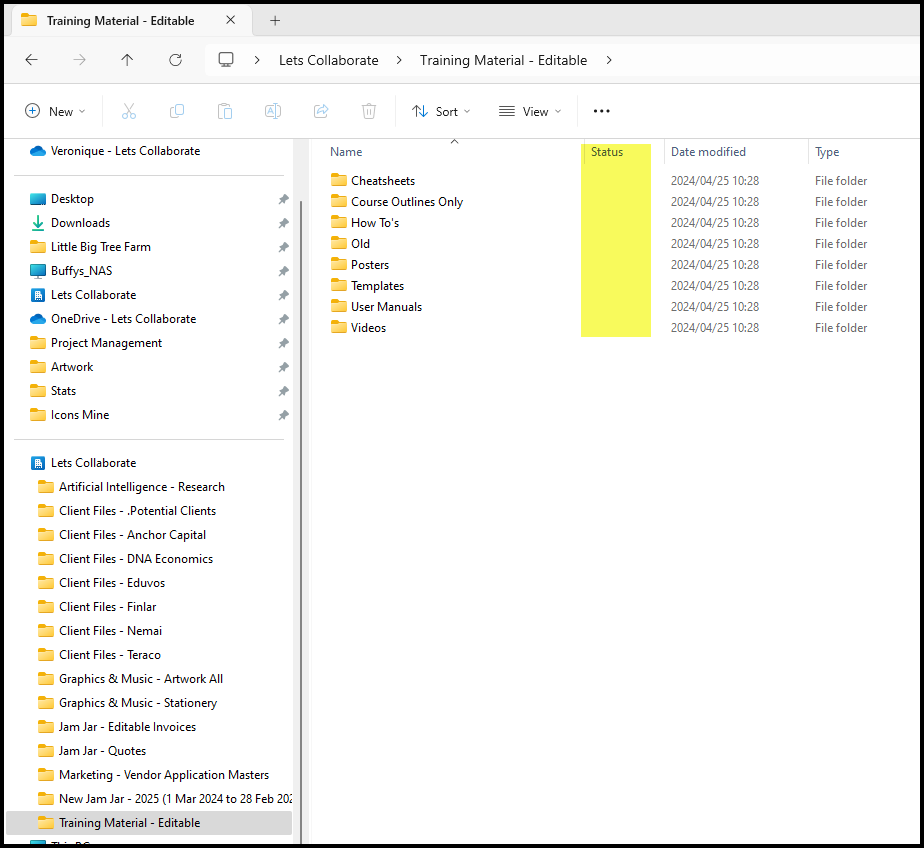
Once complete, go back to the folder in Windows Explorer, Details view. You’ll see that the status column is now empty. This means there no more link to SharePoint and these are local files on your laptop. Delete them here if you don’t want them here anymore.